Connect WhatsApp Business
This guide walks through every screen. You do not need to be technical to do this.
Before you begin: two things to know
1. You will go through a Meta wizard
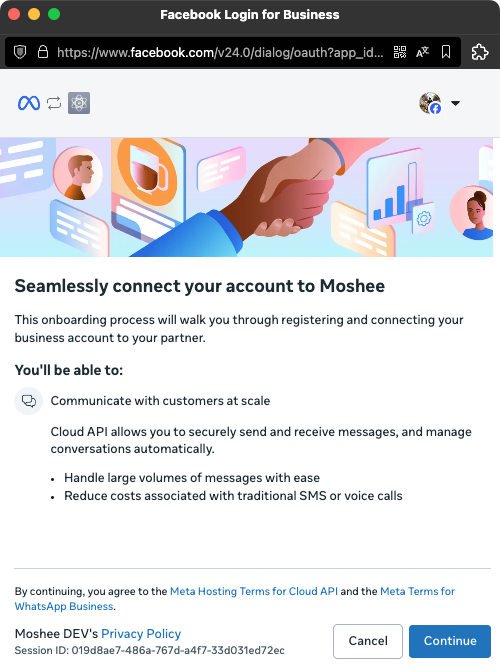
When you click Connect WhatsApp in Moshee, a popup from Meta (the company that owns WhatsApp) opens, titled "Facebook Login for Business". This is Meta’s official connection process: you are not giving Moshee your WhatsApp password, you are granting permission to send and receive messages on your behalf through Meta’s secure system. You need a personal Facebook account to log in, a free Meta Business Portfolio (the wizard creates one for you if you don’t have it), and a phone number.
2. You have two options for your number
- Option A, Coexistence: keep your existing WhatsApp Business App number AND use Moshee on it at the same time. Your chats stay in the app on your phone, and Moshee also brings in your recent chats and contacts.
- Option B, New number: add a fresh, dedicated number for Moshee. Works with any SIM that can receive an OTP, or a VoIP or landline number.
Connecting, step by step
- Find the button. During setup, Moshee offers a Connect WhatsApp button. Later: open Settings, then Connectors (Manage connectors in the mobile app). Tap Add connector and choose WhatsApp. Only admins see this. On the mobile app you can continue on your phone or copy a link to finish on a computer, which is more reliable.
- Log in with Facebook using the personal account you want managing your business.
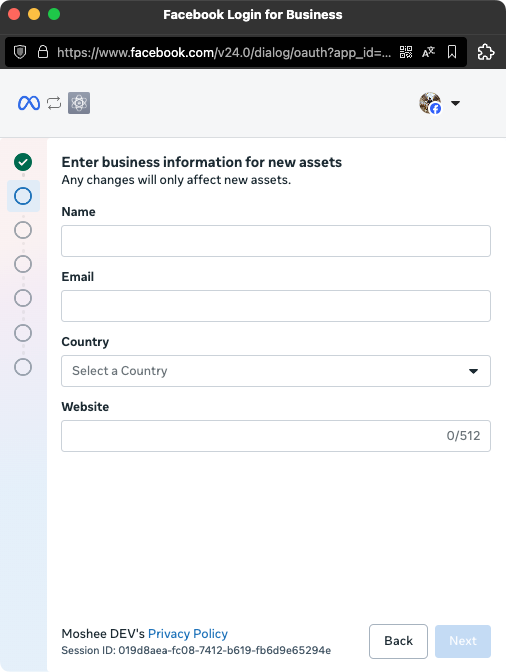
- Enter your business information: name, email, country, website. Fill these carefully, Meta uses them to review your account.
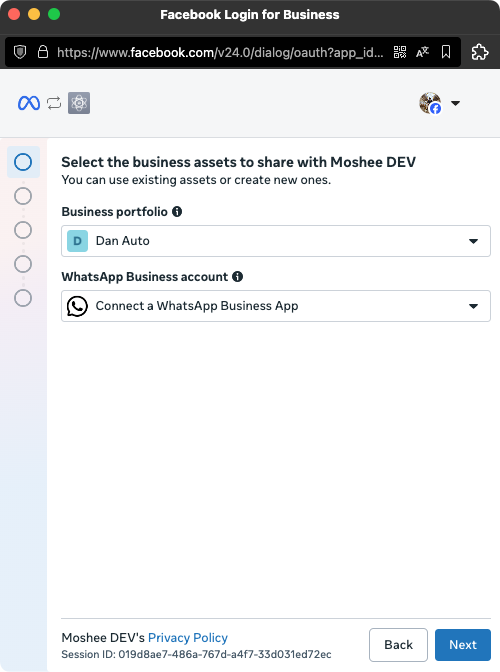
- Select your assets: pick or create your Meta Business Portfolio and WhatsApp Business Account. For Coexistence, select "Connect a WhatsApp Business App".
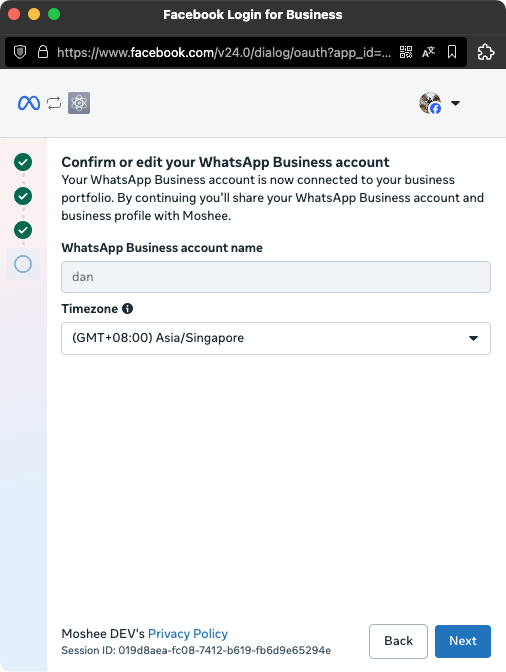
- Confirm the account name and timezone.
Path A, Coexistence
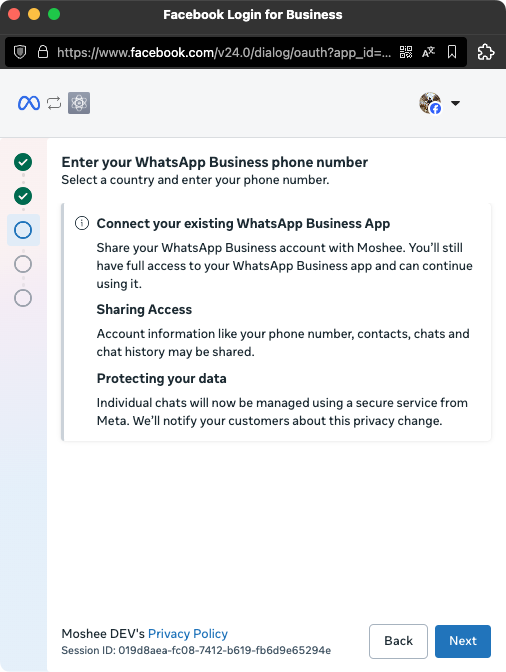
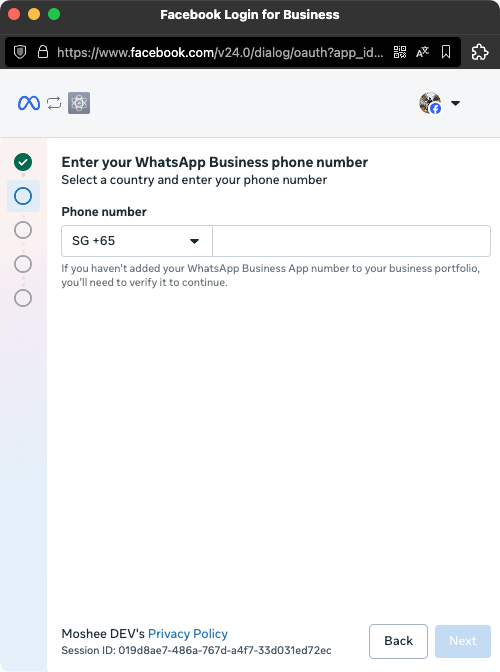
- Enter the number currently on your WhatsApp Business App.
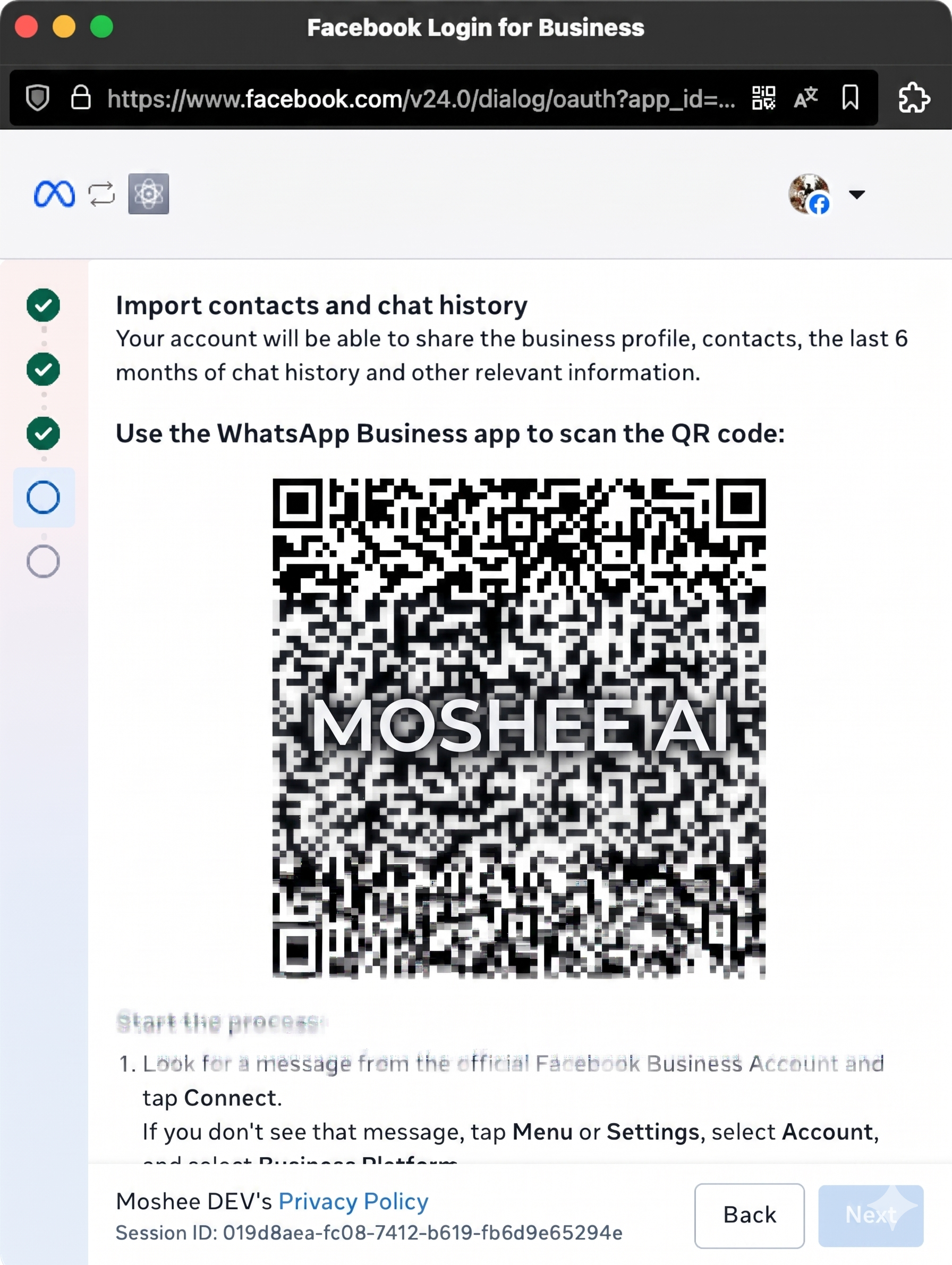
- Have your phone ready: open the WhatsApp Business App, tap Connect on the message from the official Facebook Business Account (or Menu, Settings, Account, Business Platform), and scan the QR code.
Path B, New number
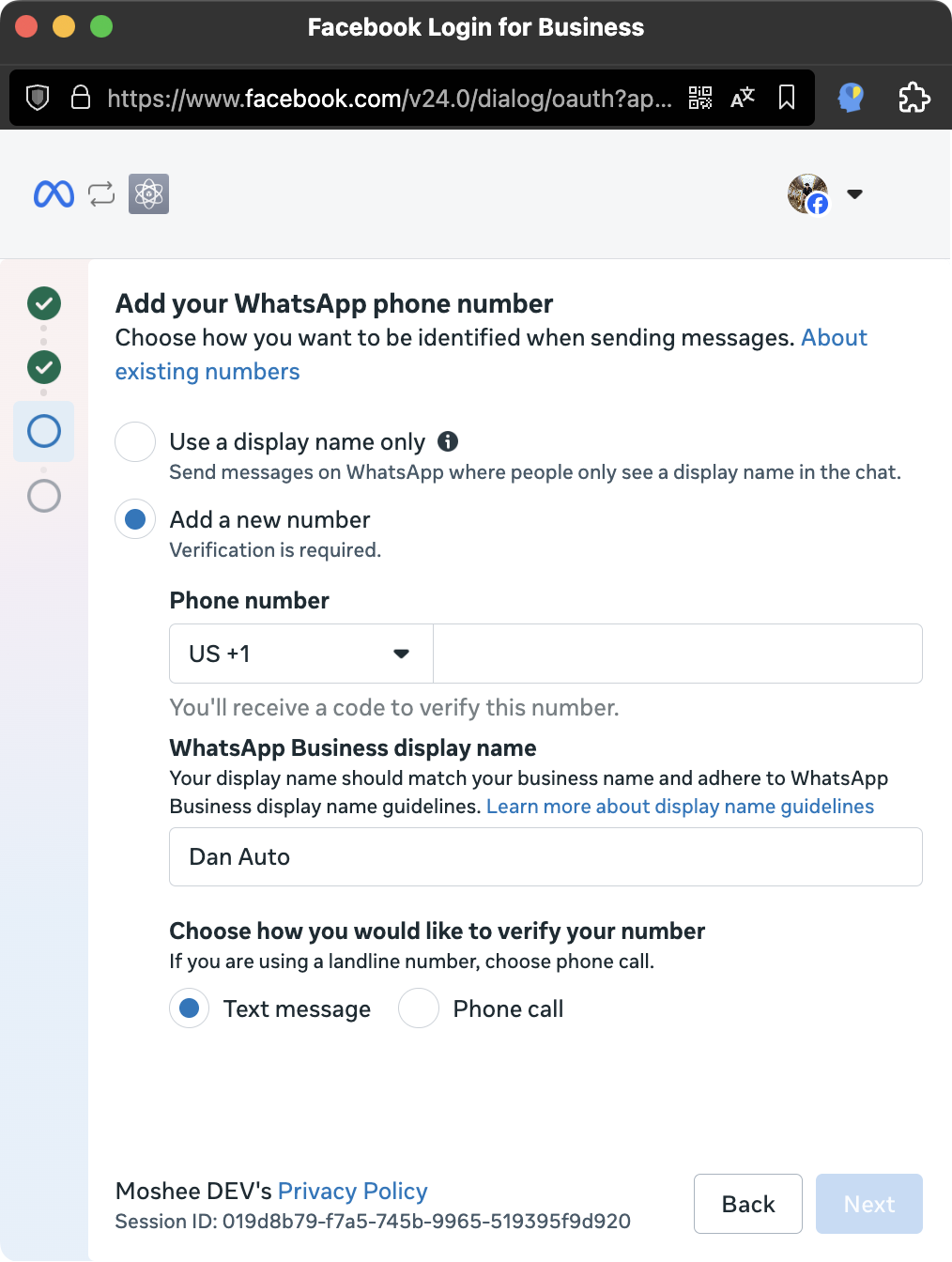
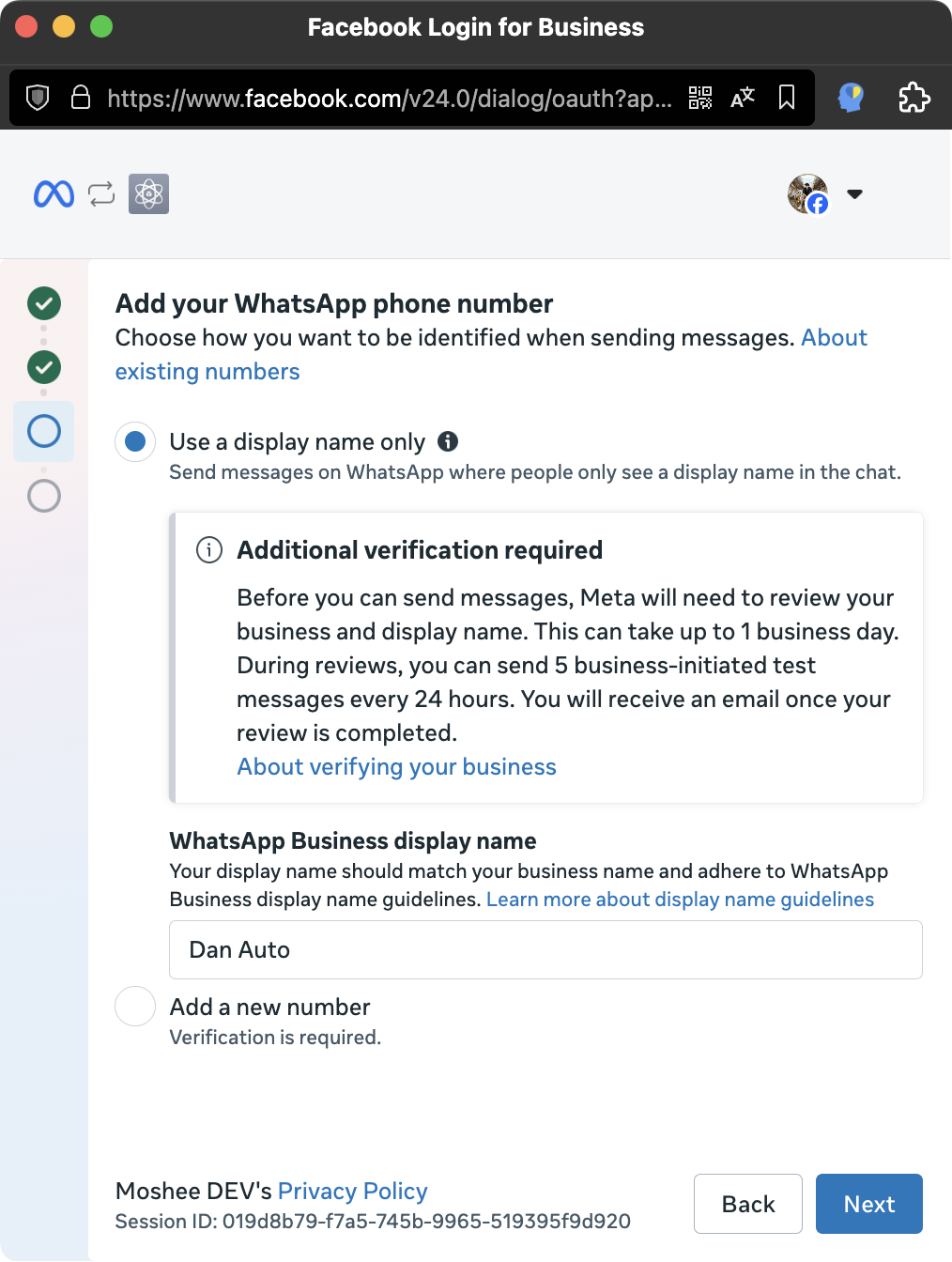
- Enter a number that is NOT already on any WhatsApp account, and your display name. Use your actual business name: generic names like "Car Dealer" get rejected by WhatsApp.
- Enter the 6-digit OTP sent to the number. No SMS? Try the phone call option.
Permissions and payment
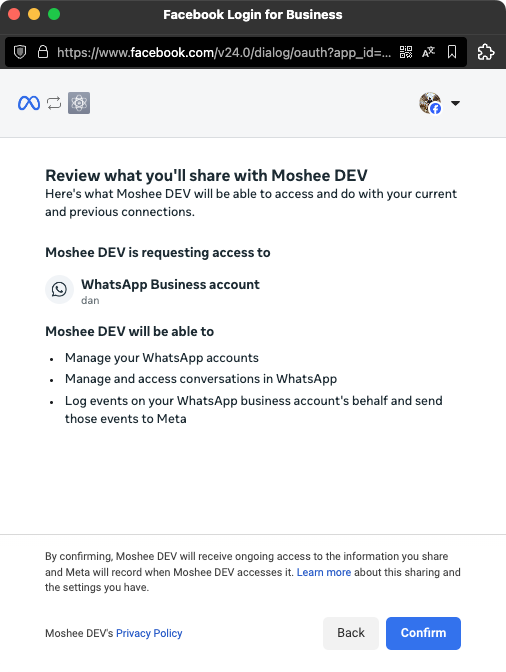
- Review permissions. Meta shows what Moshee can access: manage your WhatsApp accounts, access conversations, log events. This is standard. Tap Confirm.
- Add a payment method on the success screen. Do not skip this. Meta charges for business-initiated template messages (reminders, follow-ups), and since 1 October 2026 it also charges for your replies once a number passes 1,000 in a month. A number with no payment method on file simply stops delivering past that point, so your customers see you go silent. See what Meta charges for WhatsApp.
You are connected
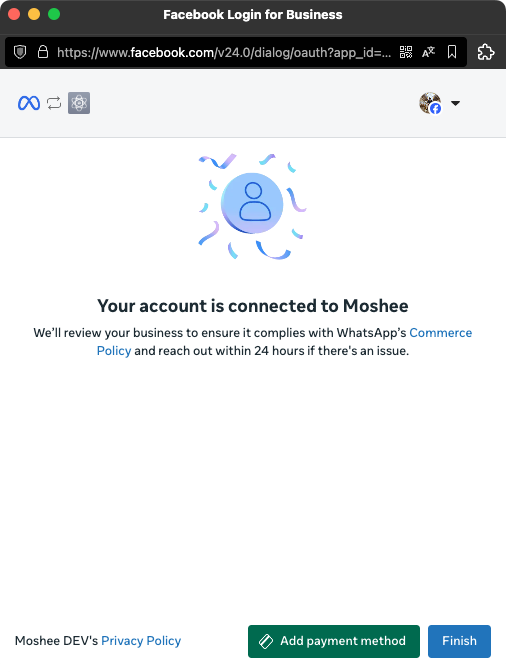
You will see "Your account is connected to Moshee" and land back in Moshee. Test it: message your number from another phone, it should appear in your inbox within seconds. Completing Meta Business Verification later is recommended, unverified accounts have lower messaging limits.